



Harbor简介:
Harbor是一个用于存储和分发Docker镜像的企业级Registry服务器,通过添加一些企业必需的功能特性,例如安全、标识和管理等,扩展了开源Docker Distribution。作为一个企业级私有Registry服务器,Harbor提供了更好的性能和安全。提升用户使用Registry构建和运行环境传输镜像的效率。Harbor支持安装在多个Registry节点的镜像资源复制,镜像全部保存在私有Registry中, 确保数据和知识产权在公司内部网络中管控。另外,Harbor也提供了高级的安全特性,诸如用户管理,访问控制和活动审计等。
Harbor特性:
基于角色的访问控制 :用户与Docker镜像仓库通过“项目”进行组织管理,一个用户可以对多个镜像仓库在同一命名空间(project)里有不同的权限。
镜像复制 :镜像可以在多个Registry实例中复制(同步)。尤其适合于负载均衡,高可用,混合云和多云的场景。
图形化用户界面 :用户可以通过浏览器来浏览,检索当前Docker镜像仓库,管理项目和命名空间。
AD/LDAP 支持 :Harbor可以集成企业内部已有的AD/LDAP,用于鉴权认证管理。
审计管理 :所有针对镜像仓库的操作都可以被记录追溯,用于审计管理。
国际化 :已拥有英文、中文、德文、日文和俄文的本地化版本。更多的语言将会添加进来。
RESTful API :RESTful API 提供给管理员对于Harbor更多的操控, 使得与其它管理软件集成变得更容易。
部署简单 :提供在线和离线两种安装工具, 也可以安装到vSphere平台(OVA方式)虚拟设备。
Harbor组件:
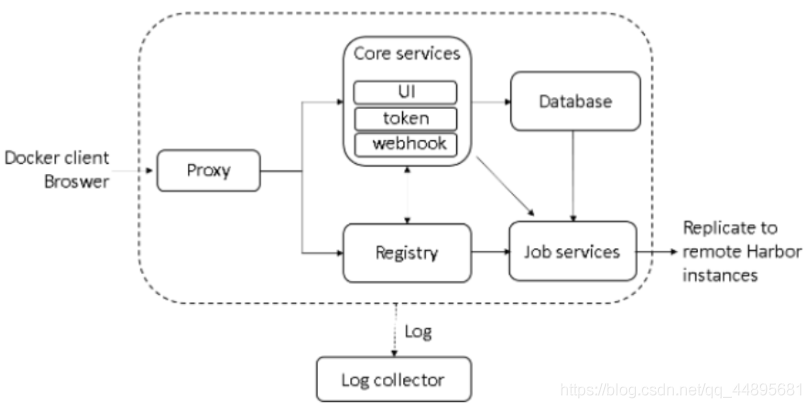
Harbor在架构上主要由6个组件构成:
Proxy:Harbor的registry, UI, token等服务,通过一个前置的反向代理统一接收浏览器、Docker客户端的请求,并将请求转发给后端不同的服务。
Registry:负责储存Docker镜像,并处理docker push/pull 命令。由于我们要对用户进行访问控制,即不同用户对Docker image有不同的读写权限,Registry会指向一个token服务,强制用户的每次docker pull/push请求都要携带一个合法的token, Registry会通过公钥对token 进行解密验证。
Core services:这是Harbor的核心功能,主要提供以下服务:
UI:提供图形化界面,帮助用户管理registry上的镜像(image), 并对用户进行授权。
webhook:为了及时获取registry 上image状态变化的情况, 在Registry上配置webhook,把状态变化传递给UI模块。
token 服务:负责根据用户权限给每个docker push/pull命令签发token. Docker 客户端向Regiøstry服务发起的请求,如果不包含token,会被重定向到这里,获得token后再重新向Registry进行请求。
Database:为core services提供数据库服务,负责储存用户权限、审计日志、Docker image分组信息等数据。
Job Services:提供镜像远程复制功能,可以把本地镜像同步到其他Harbor实例中。
Log collector:为了帮助监控Harbor运行,负责收集其他组件的log,供日后进行分析。
各个组件之间的关系如下图所示:
环境介绍:
192.168.1.18
Master、Harbor、Jenkins
CentOS 7.5.1804
Docker 19.03.13
Docker-Compose 1.18.0
2核+CPU,2GB+内存
部署Harbor仓库
Harbor部署依赖于docker和docker-compose。
安装Docker
一文搞懂Docker与Docker Engine的安装:https://blog.csdn.net/qq_44895681/article/details/105540702?…
安装Docker-compose
一文学会Docker Compose安装:https://blog.csdn.net/qq_44895681/article/details/105540333
[root@k8s-master ~]# wget https://mirrors.aliyun.com/docker-ce/linux/centos/docker-ce.repo -O /etc/yum.repos.d/docker-ce.repo[root@k8s-master ~]# yum -y install epel-release[root@k8s-master ~]# yum -y install docker-compose[root@k8s-master ~]# docker-compose versiondocker-compose version 1.18.0, build 8dd22a9docker-py version: 2.6.1CPython version: 3.6.8OpenSSL version: OpenSSL 1.0.2k-fips 26 Jan 2017
部署Harbor仓库
企业实战(5) Docker私有镜像仓库Harbor的部署与使用详解:https://blog.csdn.net/qq_44895681/article/details/105558611
下载
版本全,速度慢:https://github.com/goharbor/harbor/releases
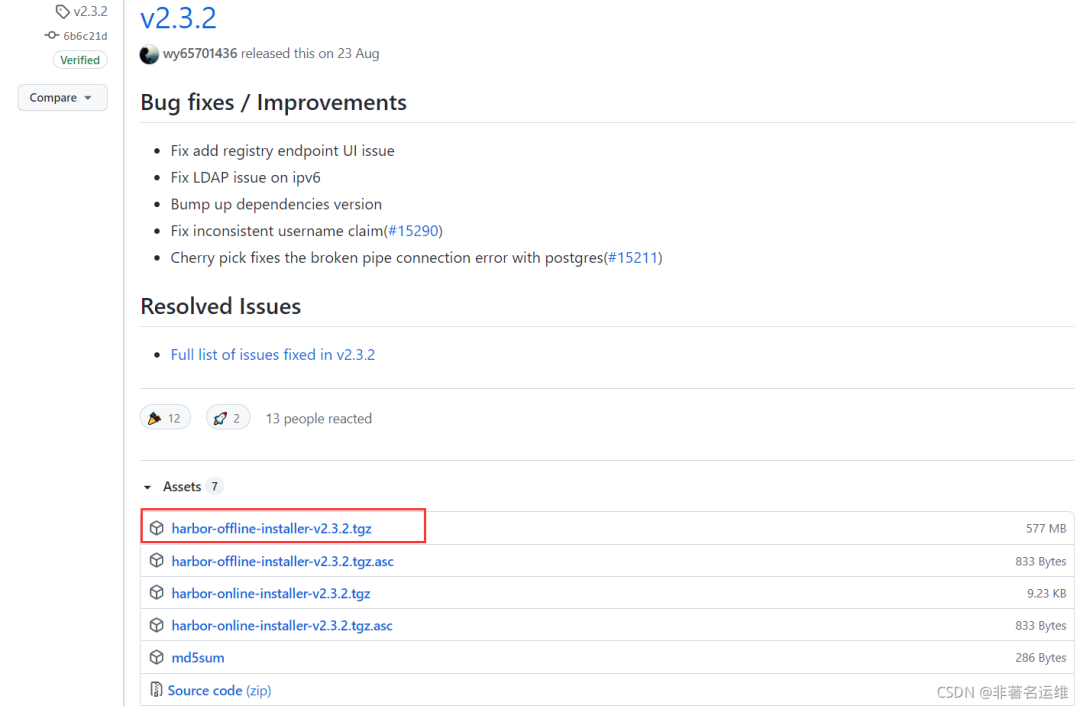
[root@k8s-master ~]# wget https://github.com/goharbor/harbor/releases/download/v2.3.2/harbor-offline-installer-v2.3.2.tgz[root@k8s-master ~]# ll harbor-offline-installer-v2.3.2.tgz-rw-r--r-- 1 root root 605477475 9月 15 11:12 harbor-offline-installer-v2.3.2.tgz[root@k8s-master ~]# tar -xvf harbor-offline-installer-v2.3.2.tgzharbor/harbor.v2.3.2.tar.gzharbor/prepareharbor/LICENSEharbor/install.shharbor/common.shharbor/harbor.yml.tmpl[root@k8s-master ~]# cd harbor/[root@k8s-master harbor]# lscommon.sh harbor.v2.3.2.tar.gz harbor.yml.tmpl install.sh LICENSE prepare
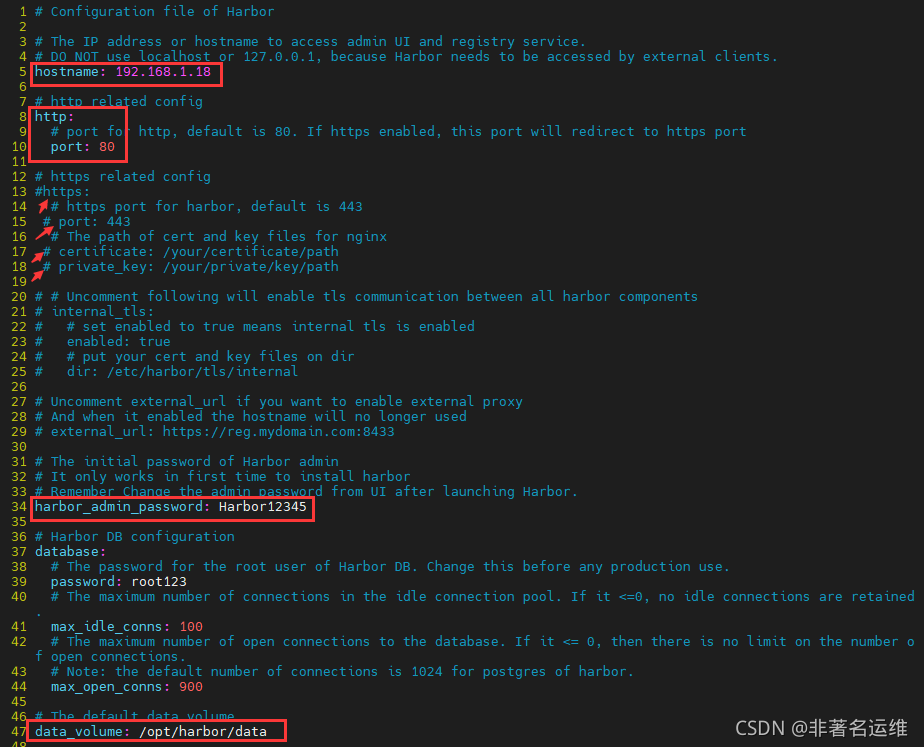
修改harbor配置文件
[root@k8s-master harbor]# cp harbor.yml.tmpl harbor.yml[root@k8s-master harbor]# vim harbor.yml ... 5 hostname: 192.168.1.18 //设置访问地址,可以是ip、主机名,不可以设置为127.0.0.1或localhost 7 # http related config 8 http: //启用http 9 # port for http, default is 80. If https enabled, this port will redirect to https port 10 port: 80 //http默认端口为80 //将https注释掉,以关闭https支持 12 # https related config 13 #https: //注释 14 # https port for harbor, default is 443 15 # port: 443 //注释 16 # The path of cert and key files for nginx 17 # certificate: /your/certificate/path //注释 18 # private_key: /your/private/key/path //注释 ... 33 # Remember Change the admin password from UI after launching Harbor. 34 harbor_admin_password: Harbor12345 //harbor登录密码 ... 46 # The default data volume 47 data_volume: /opt/harbor/data //修改harbor仓库数据目录 ...[root@k8s-master harbor]# mkdir -p /opt/harbor/data //创建harbor仓库目录(安装Harbor时会自动创建)[root@k8s-master harbor]# ls /opt/harbor/data[root@k8s-master harbor]# ./prepare //执行官方自带脚本更新配置文件prepare base dir is set to /root/harborUnable to find image 'goharbor/prepare:v2.3.2' locallyv2.3.2: Pulling from goharbor/prepare4fc7e8c5dda0: Pull completee101789e272e: Pull complete3356ca67bae9: Pull complete3d33c71b0e90: Pull completeab76e2d8736b: Pull complete9d7f4a6ec28e: Pull complete2f6837c65c74: Pull completebc8d1bca5b85: Pull completeDigest: sha256:e6ae1e30c8897ca54bcc89682dbb10c2dbd08d6c9bba647eacdef6fa776d6428Status: Downloaded newer image for goharbor/prepare:v2.3.2WARNING:root:WARNING: HTTP protocol is insecure. Harbor will deprecate http protocol in the future. Please make sure to upgrade to httpsGenerated configuration file: /config/portal/nginx.confGenerated configuration file: /config/log/logrotate.confGenerated configuration file: /config/log/rsyslog_docker.confGenerated configuration file: /config/nginx/nginx.confGenerated configuration file: /config/core/envGenerated configuration file: /config/core/app.confGenerated configuration file: /config/registry/config.ymlGenerated configuration file: /config/registryctl/envGenerated configuration file: /config/registryctl/config.ymlGenerated configuration file: /config/db/envGenerated configuration file: /config/jobservice/envGenerated configuration file: /config/jobservice/config.ymlGenerated and saved secret to file: /data/secret/keys/secretkeySuccessfully called func: create_root_certGenerated configuration file: /compose_location/docker-compose.ymlClean up the input dir
[root@k8s-master harbor]# ./install.sh //执行harbor安装脚本[Step 0]: checking if docker is installed ...Note: docker version: 19.03.13[Step 1]: checking docker-compose is installed ...Note: docker-compose version: 1.18.0[Step 2]: loading Harbor images ...Loaded image: goharbor/redis-photon:v2.3.2Loaded image: goharbor/nginx-photon:v2.3.2Loaded image: goharbor/harbor-portal:v2.3.2Loaded image: goharbor/trivy-adapter-photon:v2.3.2Loaded image: goharbor/chartmuseum-photon:v2.3.2Loaded image: goharbor/notary-signer-photon:v2.3.2Loaded image: goharbor/harbor-core:v2.3.2Loaded image: goharbor/harbor-log:v2.3.2Loaded image: goharbor/harbor-registryctl:v2.3.2Loaded image: goharbor/harbor-exporter:v2.3.2Loaded image: goharbor/notary-server-photon:v2.3.2Loaded image: goharbor/prepare:v2.3.2Loaded image: goharbor/harbor-db:v2.3.2Loaded image: goharbor/harbor-jobservice:v2.3.2Loaded image: goharbor/registry-photon:v2.3.2[Step 3]: preparing environment ...[Step 4]: preparing harbor configs ...prepare base dir is set to /root/harborWARNING:root:WARNING: HTTP protocol is insecure. Harbor will deprecate http protocol in the future. Please make sure to upgrade to httpsClearing the configuration file: /config/portal/nginx.confClearing the configuration file: /config/log/logrotate.confClearing the configuration file: /config/log/rsyslog_docker.confClearing the configuration file: /config/nginx/nginx.confClearing the configuration file: /config/core/envClearing the configuration file: /config/core/app.confClearing the configuration file: /config/registry/passwdClearing the configuration file: /config/registry/config.ymlClearing the configuration file: /config/registryctl/envClearing the configuration file: /config/registryctl/config.ymlClearing the configuration file: /config/db/envClearing the configuration file: /config/jobservice/envClearing the configuration file: /config/jobservice/config.ymlGenerated configuration file: /config/portal/nginx.confGenerated configuration file: /config/log/logrotate.confGenerated configuration file: /config/log/rsyslog_docker.confGenerated configuration file: /config/nginx/nginx.confGenerated configuration file: /config/core/envGenerated configuration file: /config/core/app.confGenerated configuration file: /config/registry/config.ymlGenerated configuration file: /config/registryctl/envGenerated configuration file: /config/registryctl/config.ymlGenerated configuration file: /config/db/envGenerated configuration file: /config/jobservice/envGenerated configuration file: /config/jobservice/config.ymlCreating harbor-log ... doneGenerated configuration file: /compose_location/docker-compose.ymlClean up the input dirCreating redis ... doneCreating harbor-core ... doneCreating network "harbor_harbor" with the default driverCreating nginx ... doneCreating registryctl ...Creating redis ...Creating registry ...Creating harbor-portal ...Creating harbor-db ...Creating harbor-core ...Creating harbor-jobservice ...Creating nginx ...✔ ----Harbor has been installed and started successfully.----[root@k8s-master harbor]# docker-compose ps //查看运行中的harbor相关容器 Name Command State Ports--------------------------------------------------------------------------------------harbor-core /harbor/entrypoint.sh Upharbor-db /docker-entrypoint.sh 96 13 Upharbor-jobservice /harbor/entrypoint.sh Upharbor-log /bin/sh -c /usr/local/bin/ ... Up 127.0.0.1:1514->10514/tcpharbor-portal nginx -g daemon off; Upnginx nginx -g daemon off; Up 0.0.0.0:80->8080/tcpredis redis-server /etc/redis.conf Upregistry /home/harbor/entrypoint.sh Upregistryctl /home/harbor/start.sh Up[root@k8s-master harbor]# ls /opt/harbor/data/ //Harbor仓库数据目录ca_download database job_logs redis registry secret
说明:
nginx:nginx负责流量转发和安全验证,对外提供的流量都是从nginx中转,所以开放https的443端口,它将流量分发到后端的ui和正在docker镜像存储的docker registry。
harbor-jobservice:harbor-jobservice 是harbor的job管理模块,job在harbor里面主要是为了镜像仓库之前同步使用的;
harbor-ui:harbor-ui是web管理页面,主要是前端的页面和后端CURD的接口;
registry:registry就是docker原生的仓库,负责保存镜像。
harbor-adminserver:harbor-adminserver是harbor系统管理接口,可以修改系统配置以及获取系统信息。
harbor-db:harbor-db是harbor的数据库,这里保存了系统的job以及项目、人员权限管理。由于本harbor的认证也是通过数据,在生产环节大多对接到企业的ldap中;
harbor-log:harbor-log是harbor的日志服务,统一管理harbor的日志。通过inspect可以看出容器统一将日志输出的syslog。
这几个容器通过Docker link的形式连接在一起,在容器之间通过容器名字互相访问。对终端用户而言,只需要暴露proxy (即Nginx)的服务端口。
常用命令:
docker-compose up -d (相当于 build + start ):构建(容器)并启动(容器)整个project的所有servicedocker-compose down -v(相当于 stop + rm ):停止并移除整个project的所有servicesdocker-compose start [serviceName]:启动已存在但停止的所有servicedocker-compose stop [serviceName]:停止运行的servicedocker-compose restart [serviceName]: 重启服务docker-compose images:列出所用的镜像docker-compose ps:查看正在运行的镜像
停止Harbor:
docker-compose down -v:停止并移除整个project的所有services
[root@localhost harbor]# docker-compose down -vStopping harbor-jobservice ... doneStopping nginx ... doneStopping harbor-ui ... doneStopping harbor-adminserver ... doneStopping redis ... doneStopping harbor-db ... doneStopping registry ... doneStopping harbor-log ... doneRemoving harbor-jobservice ... doneRemoving nginx ... doneRemoving harbor-ui ... doneRemoving harbor-adminserver ... doneRemoving redis ... doneRemoving harbor-db ... doneRemoving registry ... doneRemoving harbor-log ... doneRemoving network harbor_harbor
启动Harbor:
docker-compose up -d :构建(容器)并启动(容器)整个project的所有service
[root@localhost harbor]# docker-compose up -dCreating network "harbor_harbor" with the default driverCreating harbor-log ... doneCreating harbor-adminserver ... doneCreating registry ... doneCreating harbor-db ... doneCreating redis ... doneCreating harbor-ui ... doneCreating harbor-jobservice ... doneCreating nginx ... done
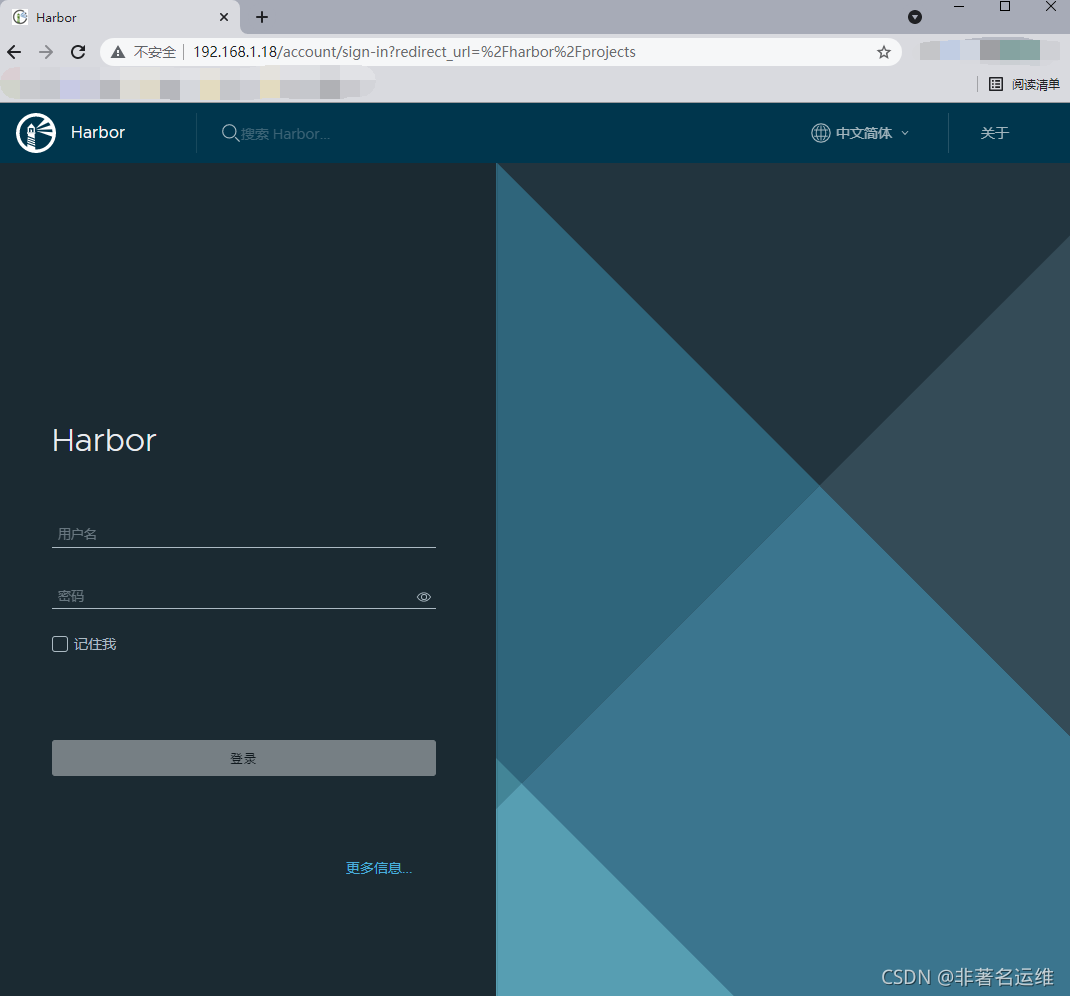
访问Harbor
启动完成后,我们访问刚才设置的hostname即:http://192.168.1.18,默认是80端口。
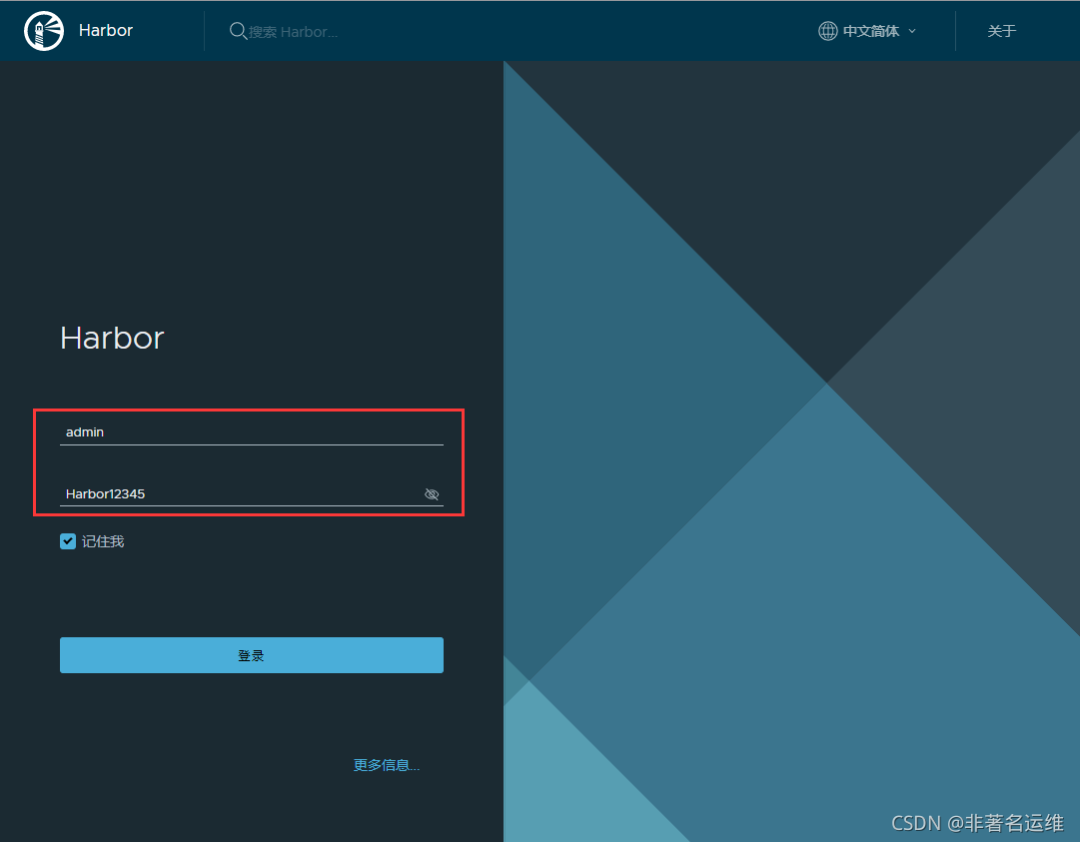
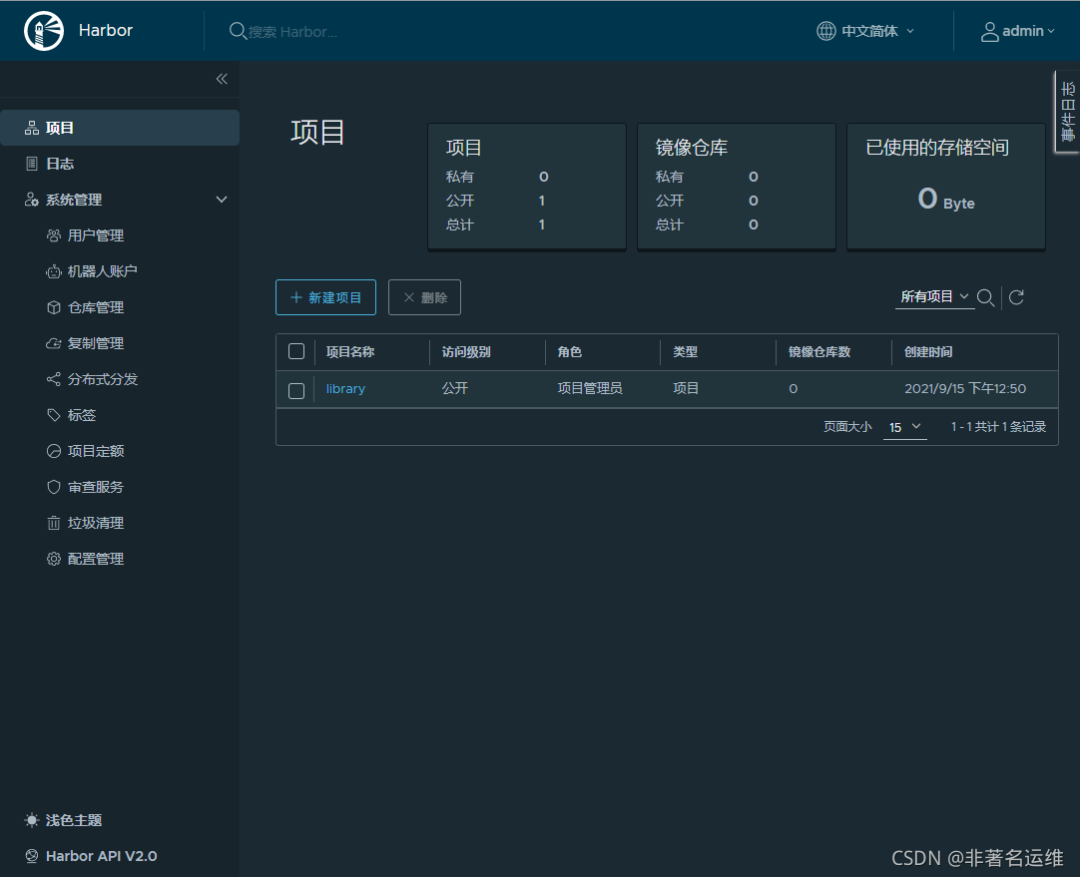
使用私有仓库push和pull镜像:
新建私有项目
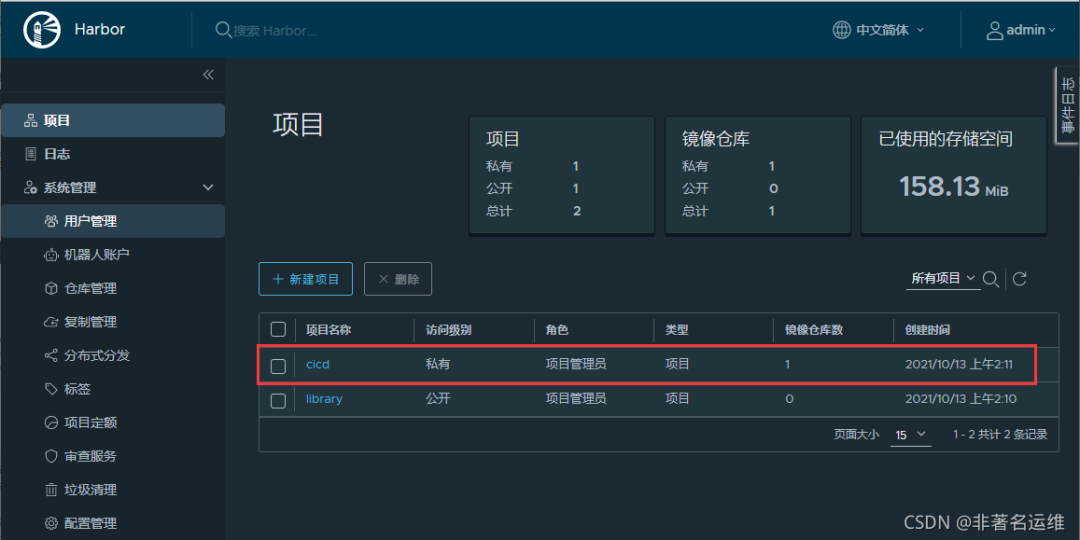
上传(push)镜像
[root@k8s-master harbor]# docker tag java-demo:v1.0 192.168.1.18/cicd/java-demo:v1.0 //根据每次上传的镜像版本打相应的标签,做好标识[root@k8s-master harbor]# docker images | grep javajava-demo v1.0 96dbaacabd81 22 months ago 406MB192.168.1.18/cicd/java-demo v1.0 96dbaacabd81 22 months ago 406MB[root@k8s-master harbor]# docker push 192.168.1.18/cicd/java-demo:v1.0The push refers to repository [192.168.1.18/cicd/java-demo]85d053b8761f: Pushedc7cfd67e17c7: Pushedceead5ca823f: Pushed2353c173a26a: Pushed071d8bd76517: Pushedv1.0: digest: sha256:4e43b2bcd81adf6d00b46a5c7efd384fc9f5b059c75255c8c89404ed4818bae3 size: 1371
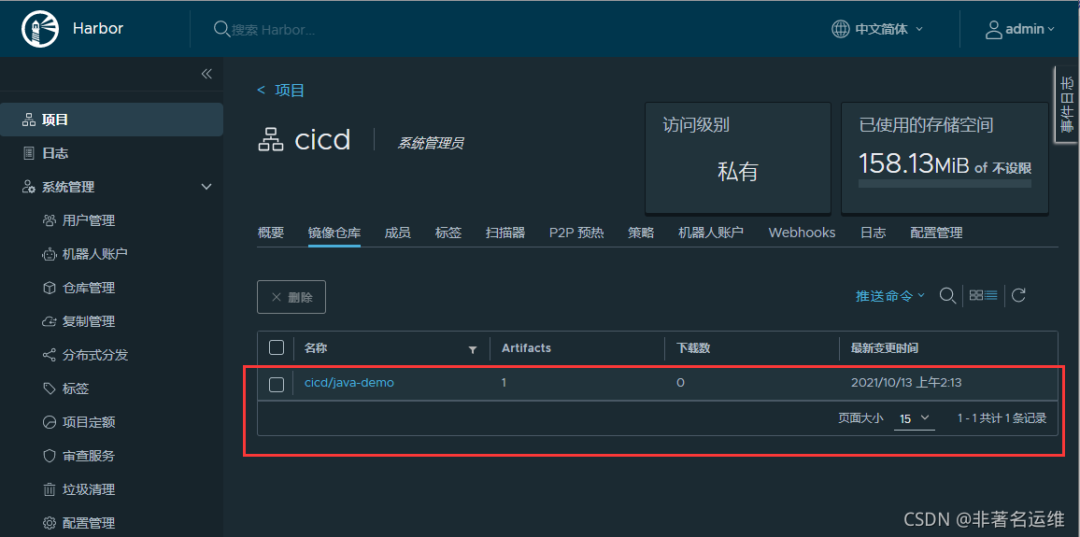
下载(pull)镜像
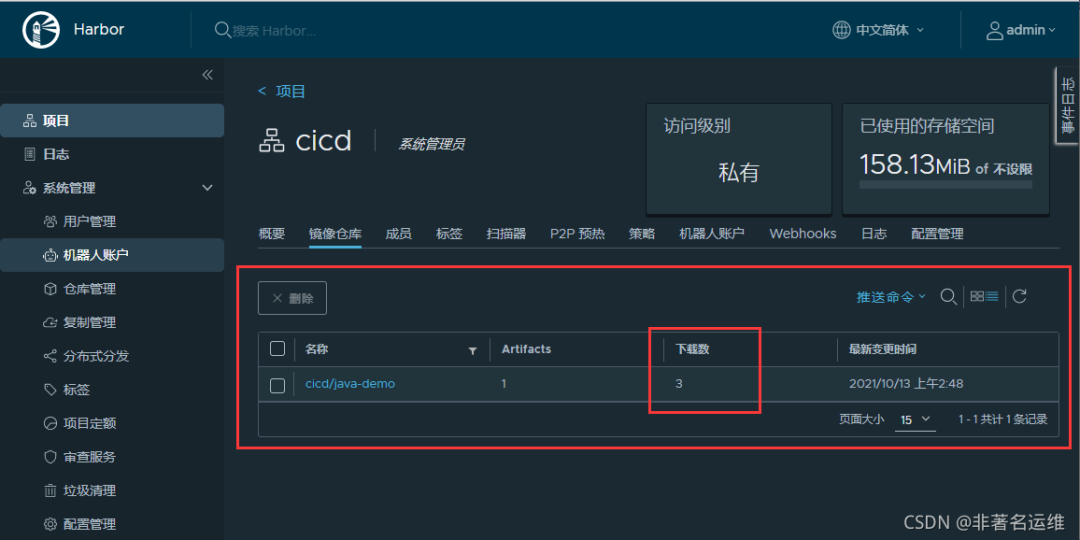
[root@k8s-node2 ~]# docker login 192.168.1.18 //node2主机登录到Harbor仓库下载镜像Username: adminPassword: //登录Harbor的密码WARNING! Your password will be stored unencrypted in /root/.docker/config.json.Configure a credential helper to remove this warning. Seehttps://docs.docker.com/engine/reference/commandline/login/#credentials-storeLogin Succeeded[root@k8s-node2 ~]# docker pull 192.168.1.18/cicd/java-demo:v1.0v1.0: Pulling from cicd/java-demoa02a4930cb5d: Pull complete12ac6c660ca4: Pull complete675ab56ce773: Pull complete10f8e813c167: Pull complete2347739fbd10: Pull completeDigest: sha256:4e43b2bcd81adf6d00b46a5c7efd384fc9f5b059c75255c8c89404ed4818bae3Status: Downloaded newer image for 192.168.1.18/cicd/java-demo:v1.0192.168.1.18/cicd/java-demo:v1.0[root@k8s-node2 ~]# docker images | grep java192.168.1.18/cicd/java-demo v1.0 96dbaacabd81 22 months ago 406MB
登录Harbor报错解决:
Docker login Harbor报错解决:https://blog.csdn.net/qq_44895681/article/details/105573702
温馨提示
如果您喜欢本文,就请动动您的发财手为本文留言转发在看,想获取更多运维相关内容,请记得关注我。
点个[在看],是对我最大的支持!

